Support
Frequently Asked Questions
Practical answers for setting up ETP Copier, connecting accounts, managing templates, and troubleshooting common workflows.
General
What is Trade Copier software, and how does it work?
Trade Copier software is an advanced tool that allows you to replicate trades from one trading account (the leader account) to other connected accounts (follower accounts). It works seamlessly by identifying trades on the leader account and instantaneously copying them to the follower accounts, ensuring synchronized trade duplication in real-time.
Is the Trade Copier software compatible with different trading platforms and brokers?
Yes! Our TradeCopier software is platform-free and designed to be compatible with a wide range of trading platforms that support the Rithmic trade processor engine. Connect with ease to various platforms, and enjoy the flexibility to diversify your trading strategies.
How secure is my trading data and account information with Trade Copier?
We prioritize the security and confidentiality of your trading data. Our TradeCopier software employs top-tier security measures, using encryption protocols to safeguard your information. Furthermore, all of your personal data is stored on your machine only. Rest assured, your trading activities and account details are in safe hands.
Can I customize the Trade Copier settings to suit my trading preferences?
Absolutely! Our TradeCopier allows you to configure trade settings according to your preferences and risk management requirements. You can adjust lot sizes, allocate percentages of equity, and define other essential parameters to align the software with your unique trading style.
Is Trade Copier suitable for both beginner and experienced traders?
Yes, indeed! Whether you’re a novice trader or an experienced pro, our TradeCopier software caters to traders of all levels. Its user-friendly interface makes it easy for beginners to get started, while its advanced features empower seasoned traders to optimize their strategies.
How can I get started with the Trade Copier software?
Getting started is simple! Visit our website and click the buy button. After you purchase, follow the easy installation process and connect your trading accounts. Once configured, the TradeCopier will begin replicating trades in real-time, and you’ll be on your way to enhanced trading efficiency.
Can I use ETP Trade Copier for my Prop Trading accounts?
Yes, ETP Trade Copier is compatible with futures firms like Apex, TopStep, PropShopTrader, etc. that offer Rithmic, DXtrade, and Tradovate trade processors.
Is there a limitation on the number of devices you can use the same trade copier login on?
You can install the Trade Copier on multiple devices with the same login; however, at any given time, only one device can be used for copying.
Billing & Payments
What is the cost of ETP Trade Copier, and is it a one-time fee or a subscription?
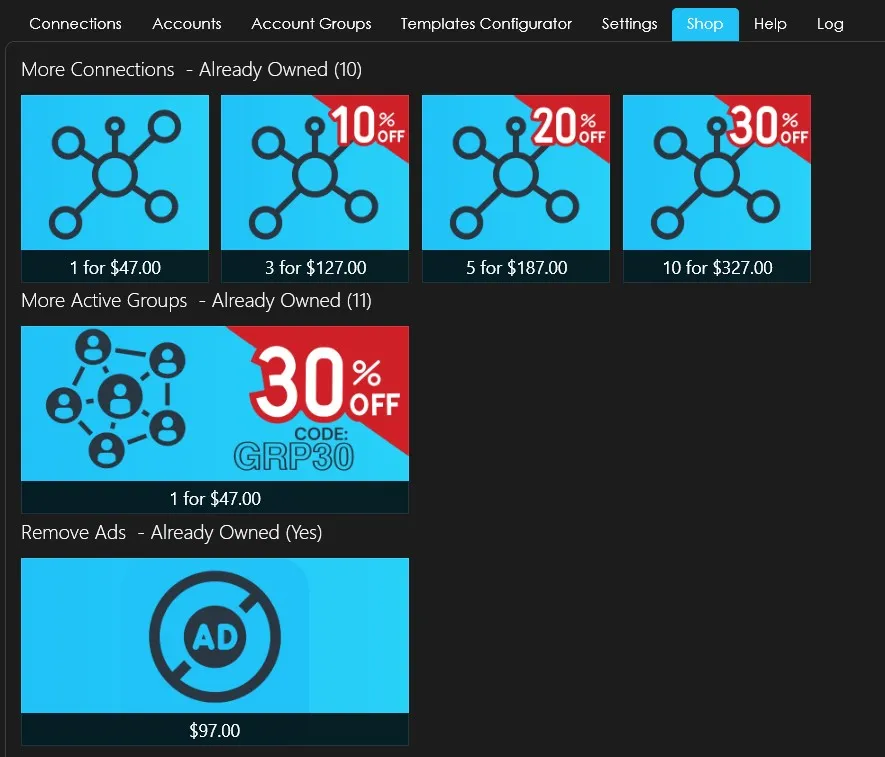
The prices listed are for a lifetime purchase for all users. With the base product purchase of $197, you get 1 connection and 1 account group. If you need more connections and want the option to create more account groups, you can purchase additional ones from the Shop tab within the Trade Copier. Pricing details are provided below.
What are the payment methods available to purchase the ETP Trade Copier?
You can purchase the copier using any major Credit card or Debit card via Stripe.
How long does it take to receive the login credentials after you purchase the Copier?
You’ll receive your login credentials within 10 minutes of purchase. If you don’t receive them within that time, please email us at support@experttradingprogrammers.com.
Connections & Setups
What should you do if the Copier fails to connect to your prop firm accounts?
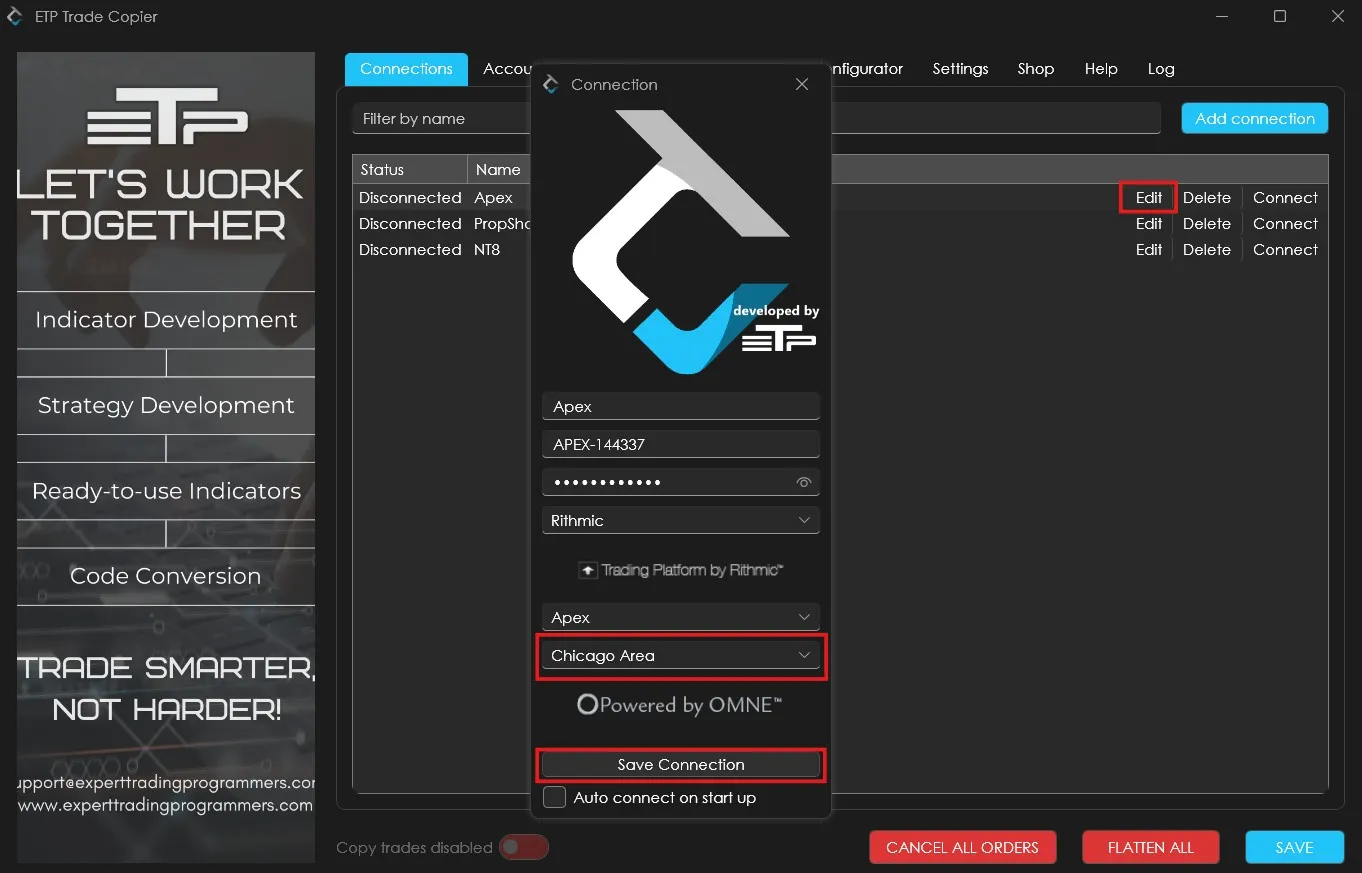
All connections have a 30-second timeout. If you’re unable to connect, the server may be unreachable. In such cases, it’s recommended to change the server location using the ‘Edit’ feature. Once the server location is changed, click on ‘Save Connection’. (This applies specifically to Rithmic connections.)
What to do when trades are not copying from Master to Follower accounts?
This issue usually occurs when the ‘Copy Trade’ toggle (located at the bottom left) is not enabled or when the templates are not configured correctly. We recommend that traders double-check both the template settings and ensure the ‘Copy Trade’ toggle is turned on.
Additionally, please verify that you have an active connection and that the group is enabled for trading under the ‘Accounts Group’ tab.
If the issue still persists and you are using a direct NT8 connection and both settings are correct, but trades are still not being copied, please follow these troubleshooting steps:
- Close both ETP Copier and NinjaTrader 8.
- Launch NinjaTrader 8 first.
- Connect NT8 to market data.
- In the Control Center of NT8, go to Tools and connect the ETP Trade Copier.
- Open the Trade Copier.
- Connect the Copier to NT8.
- Then connect any additional connections.
I’m not able to enable the ‘Copy trades’ toggle. What shall I do?
This issue usually occurs when you’re not connected to any setup or haven’t enabled an account group for trading under the ‘Accounts Group’ tab. Once you complete these steps, you’ll be able to activate the ‘Copy Trades’ toggle.

After I activate my Copy trading, it disables automatically after a few trades. What can be the issue?
This generally happens in three cases:
-
The user themselves disables the toggle.
-
The user clicks the ‘Flatten all’ button to close all open trades.
-
Broker gets disconnected temporarily
NinjaTrader 8 Add-on
What is ETP NinjaTrader8 add-on?
The ETP NT8 add-on lets you easily connect to NinjaTrader 8 and copy trades between accounts linked to your NinjaTrader setup. It streamlines trade management across multiple platforms, enhancing your overall trading efficiency.
How to install and import the NinjaTrader 8 addon for ETP Trade Copier:
Steps to import the ETP Trade Copier NT8 Add-on:
-
Download the ETP Trade Copier NinjaTrader 8 addon file from the ETP website.
-
Download and open the NinjaTrader 8 platform. Make sure that the platform version is 8.1.0.0 or higher.
-
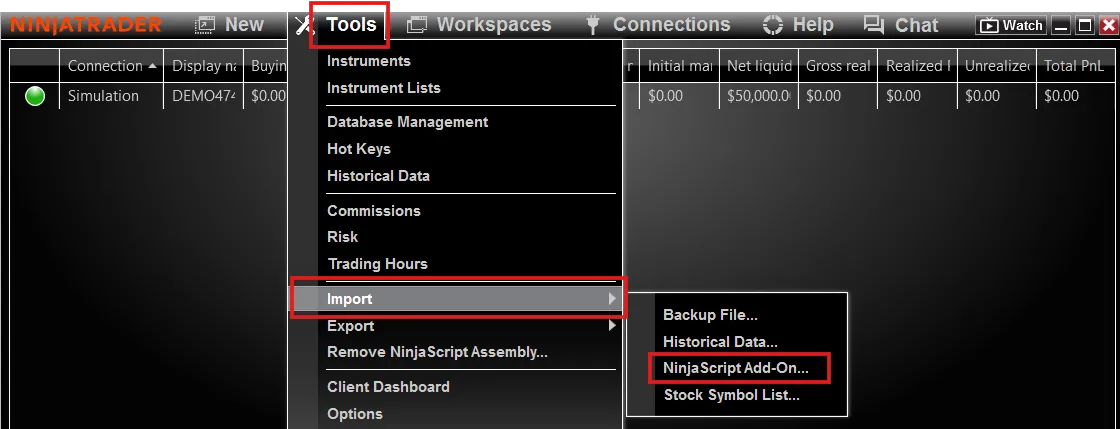
In the control center panel of NinjaTrader, navigate to the ‘Tools’ tab, select ‘Import’, and click on ‘NinjaScript Addon’
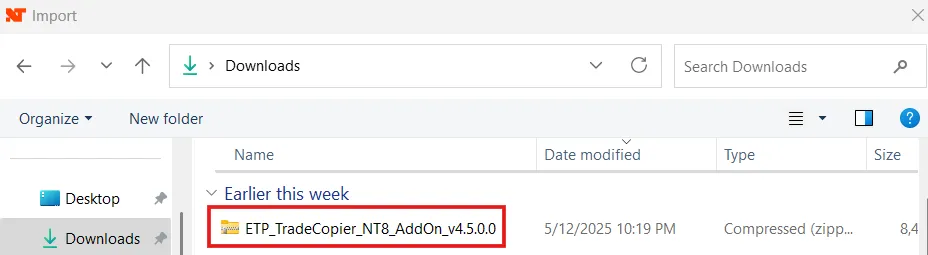
- It will open a separate window to import a file from your PC, locate the ‘ETP_TradeCopier_NT8_AddOn’ file, and open it.
-
Select ‘Yes’ to give authorization for the connection, and restart the NinjaTrader 8 platform.
-
Now open the ‘Tools’ tab again, and you will notice the ‘ETP Trade Copier – Disconnected’ at the bottom. Click on it and it will be enabled.
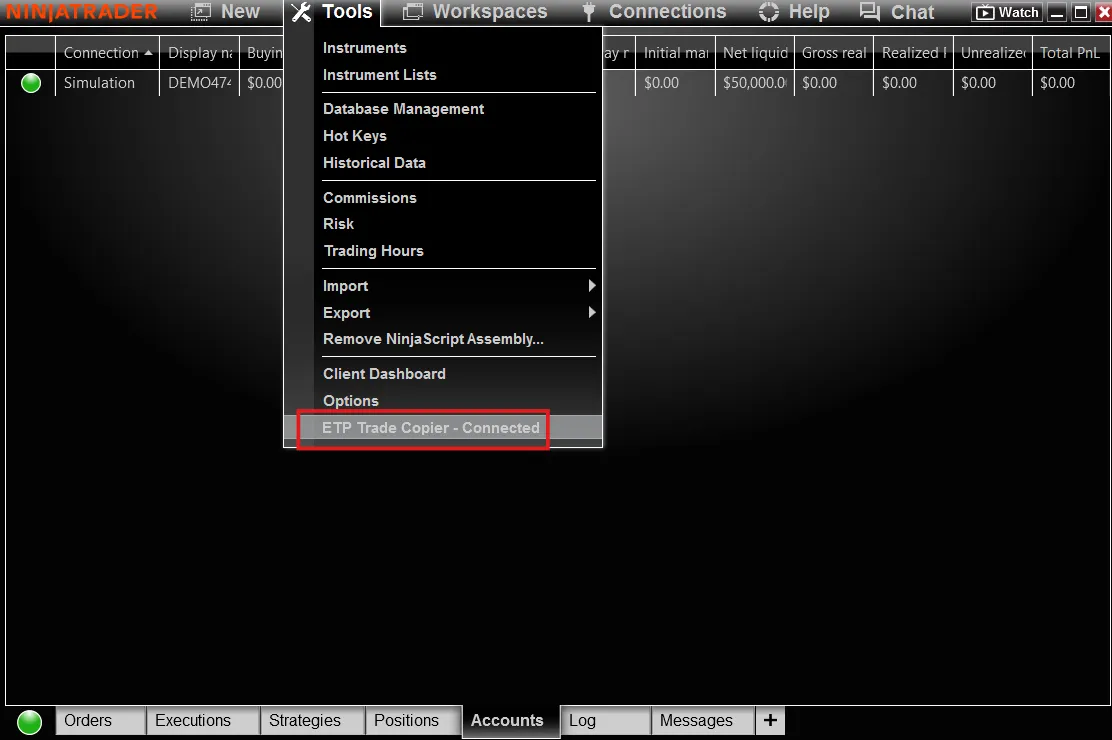
Is it possible to make a direct NT8 connection to ETP?
You can now connect NinjaTrader 8 directly to ETP Trade Copier, allowing for seamless trade copying between accounts. This enhancement lets traders take full advantage of NinjaTrader 8 while using ETP Trade Copier’s advanced tools to manage multiple accounts efficiently.
How to link Ninjatrader and ETP copier?
- Open NinjaTrader’s Control Center and ensure you’re connected to ‘ETP Trade Copier’ under the ‘Tools’ tab. Also, verify that you have an active market data connection under the ‘Connections’ tab in NinjaTrader 8.
- Launch the ETP Trade Copier and add a new connection for NinjaTrader. You can name it ‘NT8 Direct’. Since it’s a direct integration, you can skip the Username and Password fields. Simply select ‘NinjaTrader 8’ as the broker directly and save the connection. Then, connect the NT8 Direct profile.
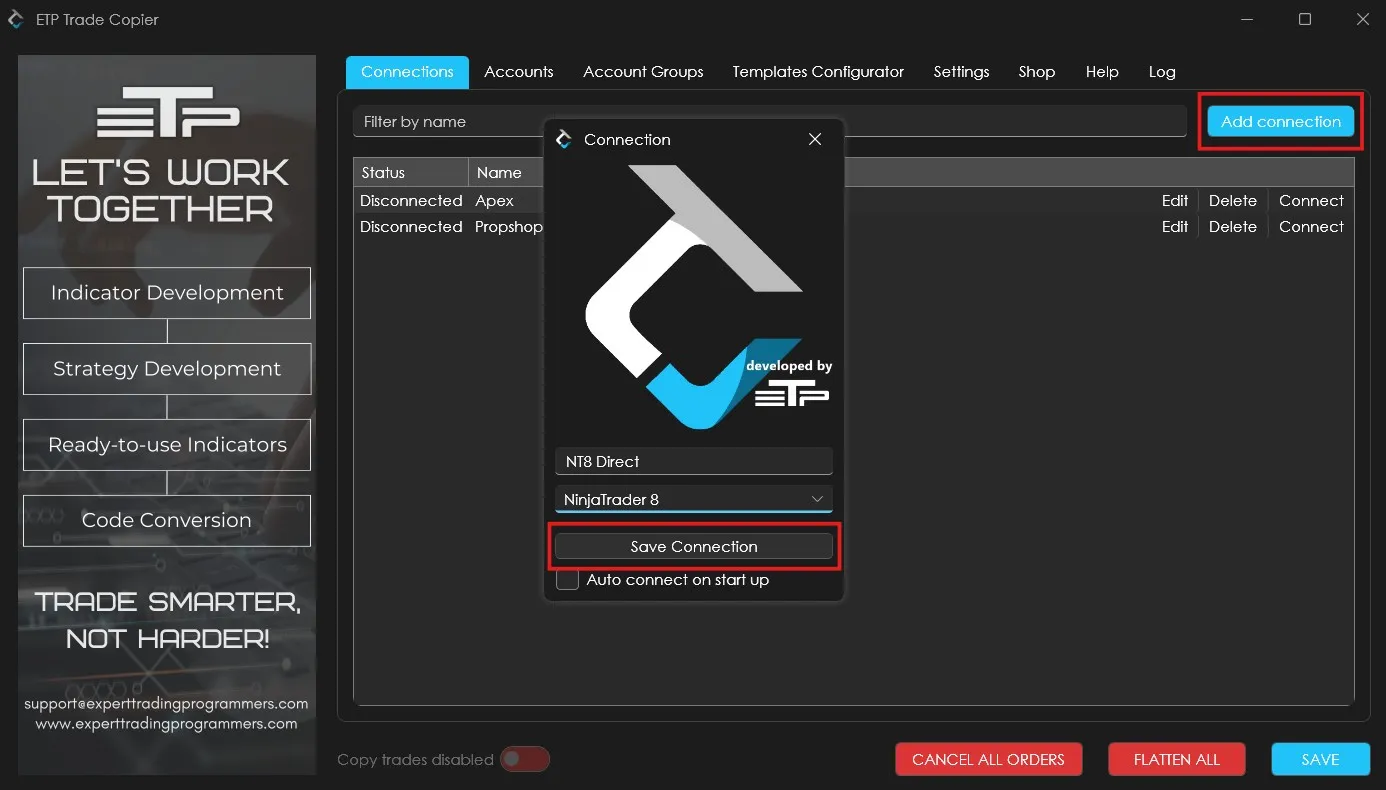
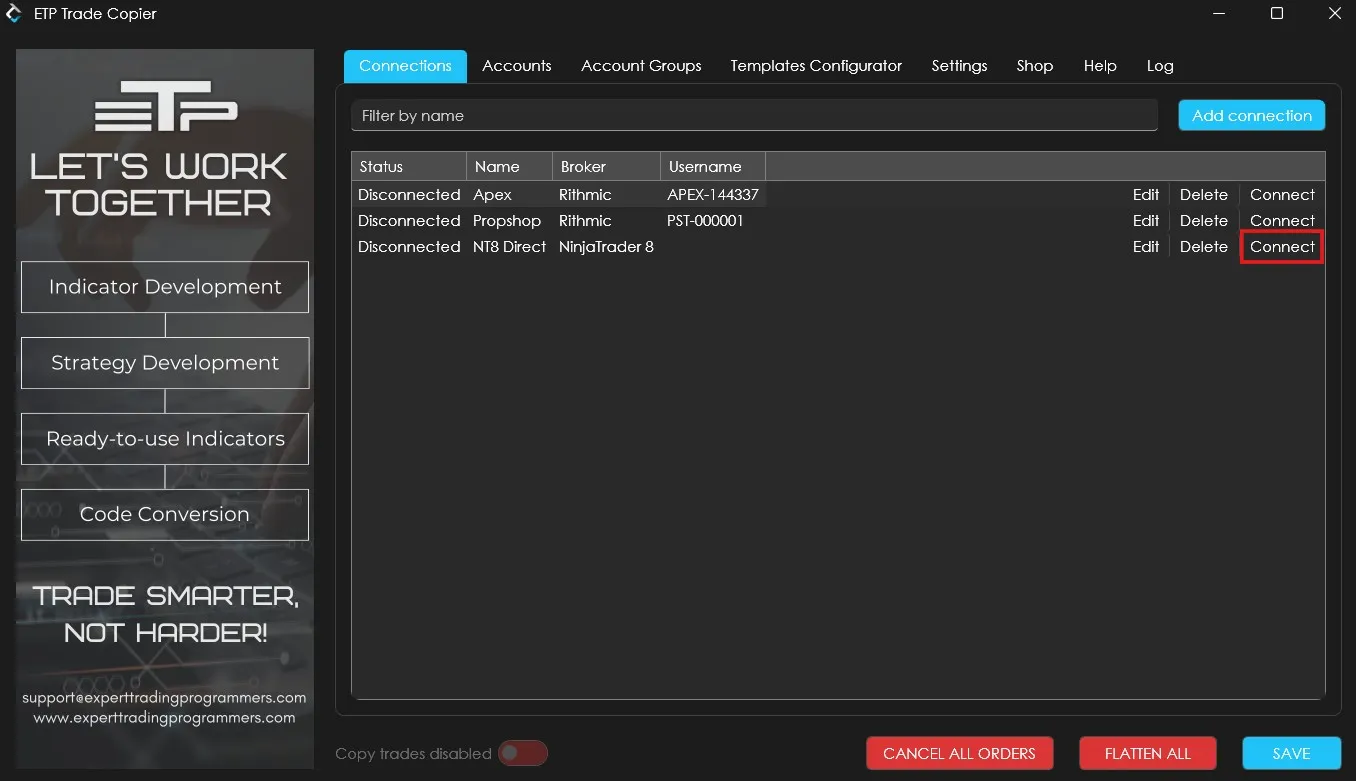
What to do when the NT8 direct connection fails?
Connection failures typically occur when NinjaTrader is not updated to a version compatible with the ETP Copier. To resolve this, we recommend updating NinjaTrader to the latest supported version.
You can download or update to the latest version of NinjaTrader using the following link: https://support.ninjatrader.com/s/article/NinjaTrader-Desktop-Installation-Guide?language=en_US
Can I use the direct NinjaTrader connection for my non-Rithmic NinjaTrader account while copying?
Yes, you can connect non-Rithmic NinjaTrader accounts with ETP. On NinjaTrader8, add the non-Rithmic accounts, and make the direct NT8 connection on the copier.
I’m getting a missing dll error while updating NinjaTrader8. Is there a way to fix this error?
For all dll errors, follow the steps below:
-
Keep the Ninja Trader8 platform closed. Go to C:\Program Files\NinjaTrader 8\bin folder
-
Copy the missing Grpc.Core.Api.dll file
-
Paste that file in Documents\NinjaTrader 8\bin\Custom folder.
Once these steps are done, open the NinjaTrader8 platform, and the error will disappear.
Trading Templates
How to inverse copy the trades? Like if I open NQ on the Leader, it should open MNQ on the follower accounts.
You can achieve this in two ways:
- Using a Copy Method Template: Enable the ‘Map to Inverse Instrument’ option in a copy method template and assign this template to your desired group. Note: This will invert trades for all instruments in the group.
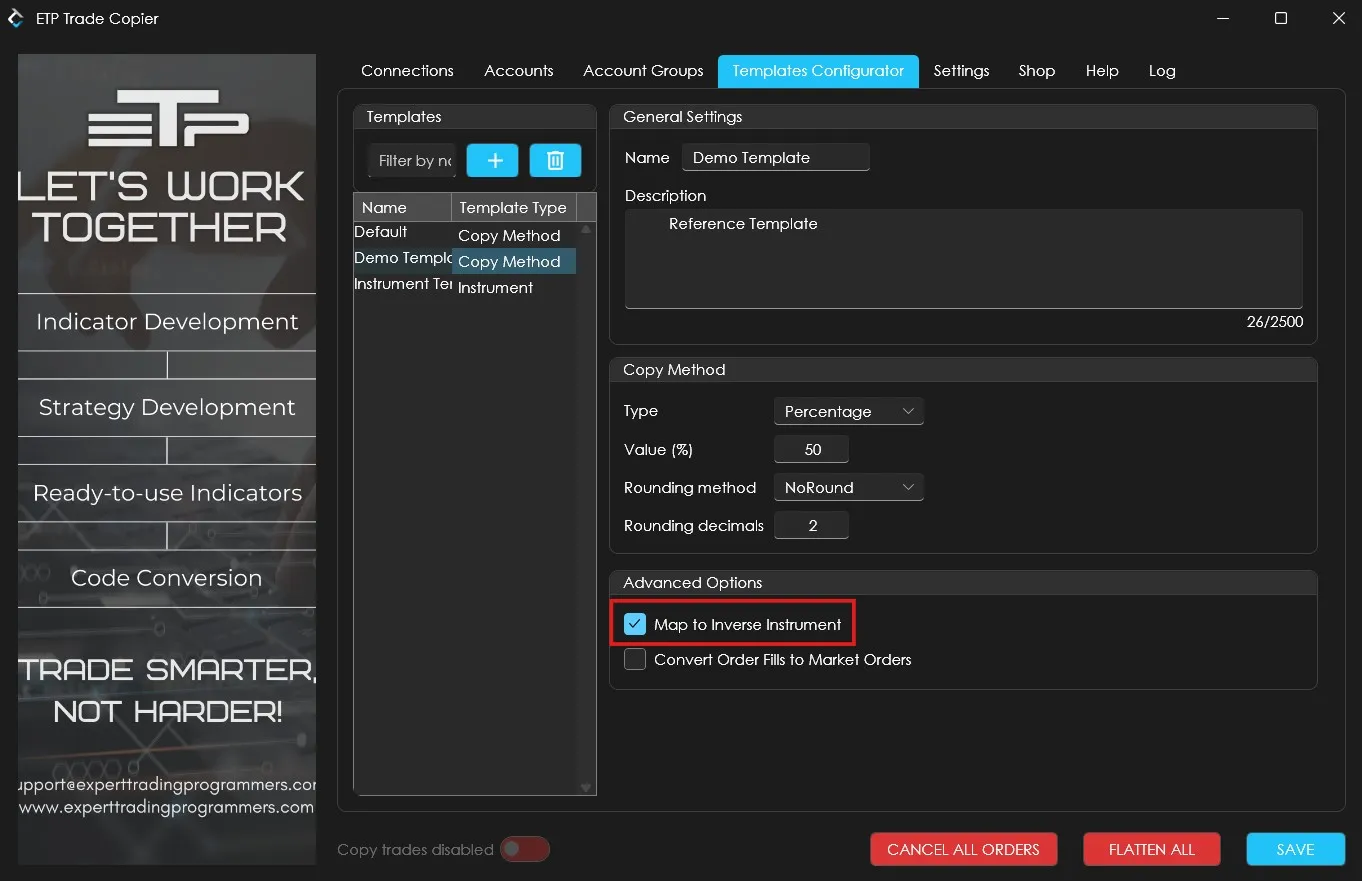
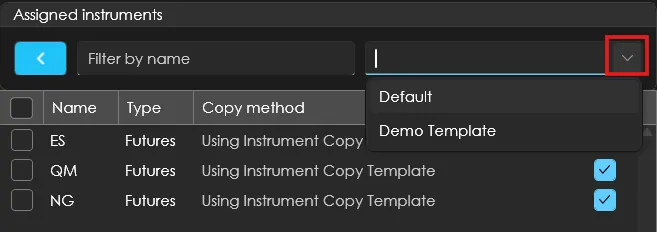
- Using an Instrument template for a specific instrument: Create an instrument template for the specific instrument, then:
a. Attach the desired instrument to the instrument template
b. Add a copy method with ‘Map to Inverse Instrument’ enabled to that instrument template
c. Assign this instrument template to your account group.
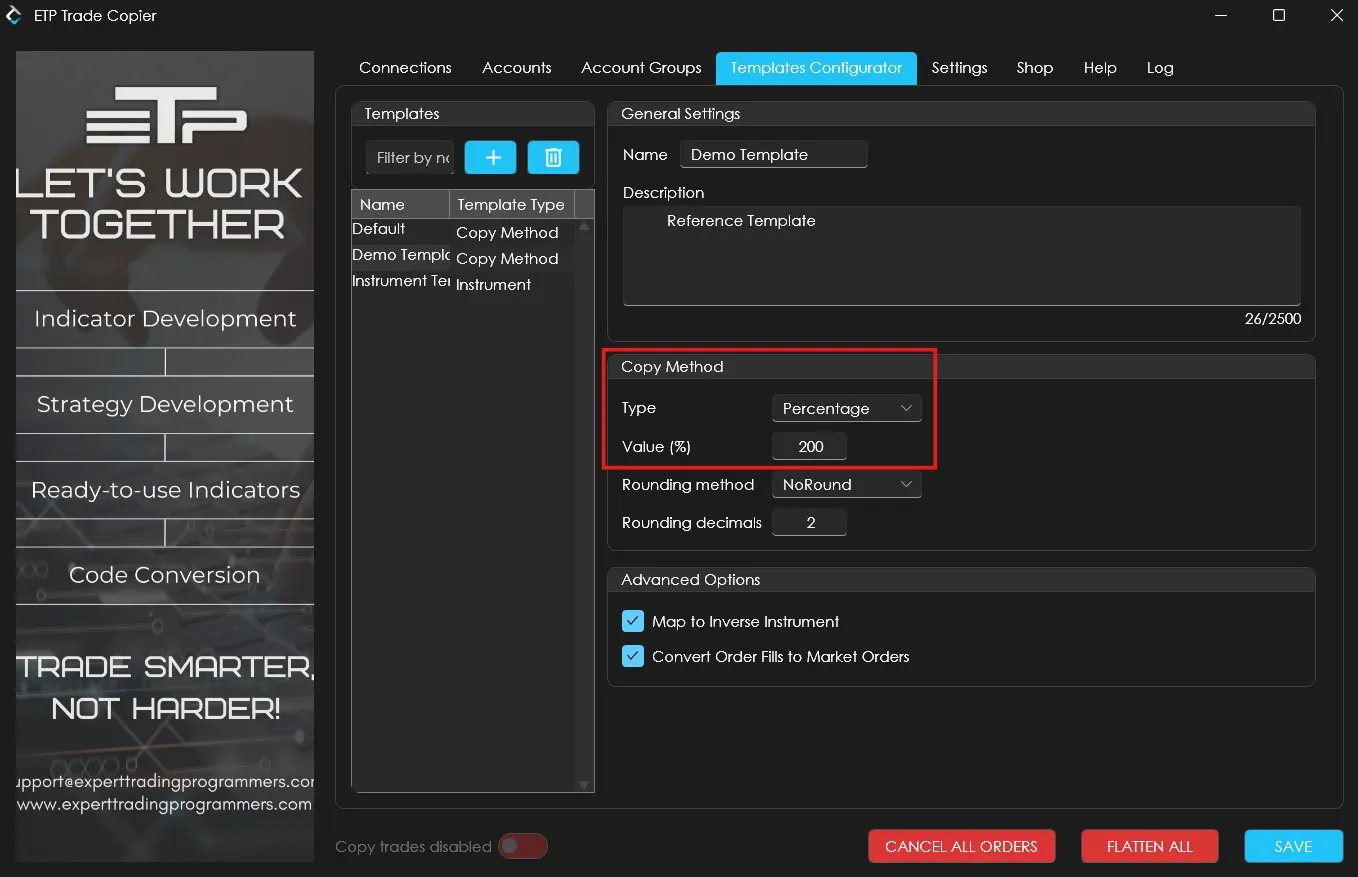
How can I copy trades with increased/decreased contract sizes on my follower accounts?
To achieve this, you’ll need to create a copy method template. Set the type to Percentage and enter the value based on your desired trade size.
For example:
-
If your leader account opens 1 contract and you want the follower accounts to open 2 contracts, set the value to 200%. This will ensure the follower accounts open trades at double the size.
-
If your leader account opens 4 contracts and you want the follower accounts to open 2 contracts, then set the value to 50%. This will ensure the follower accounts open 2 contracts(50% of 4)
How can I copy trades for specific instruments only within an account group?
To copy only specific instruments for an account group, you’ll need to create an instrument template.
- Start by adding the specific instrument(s) you want to include in the template.
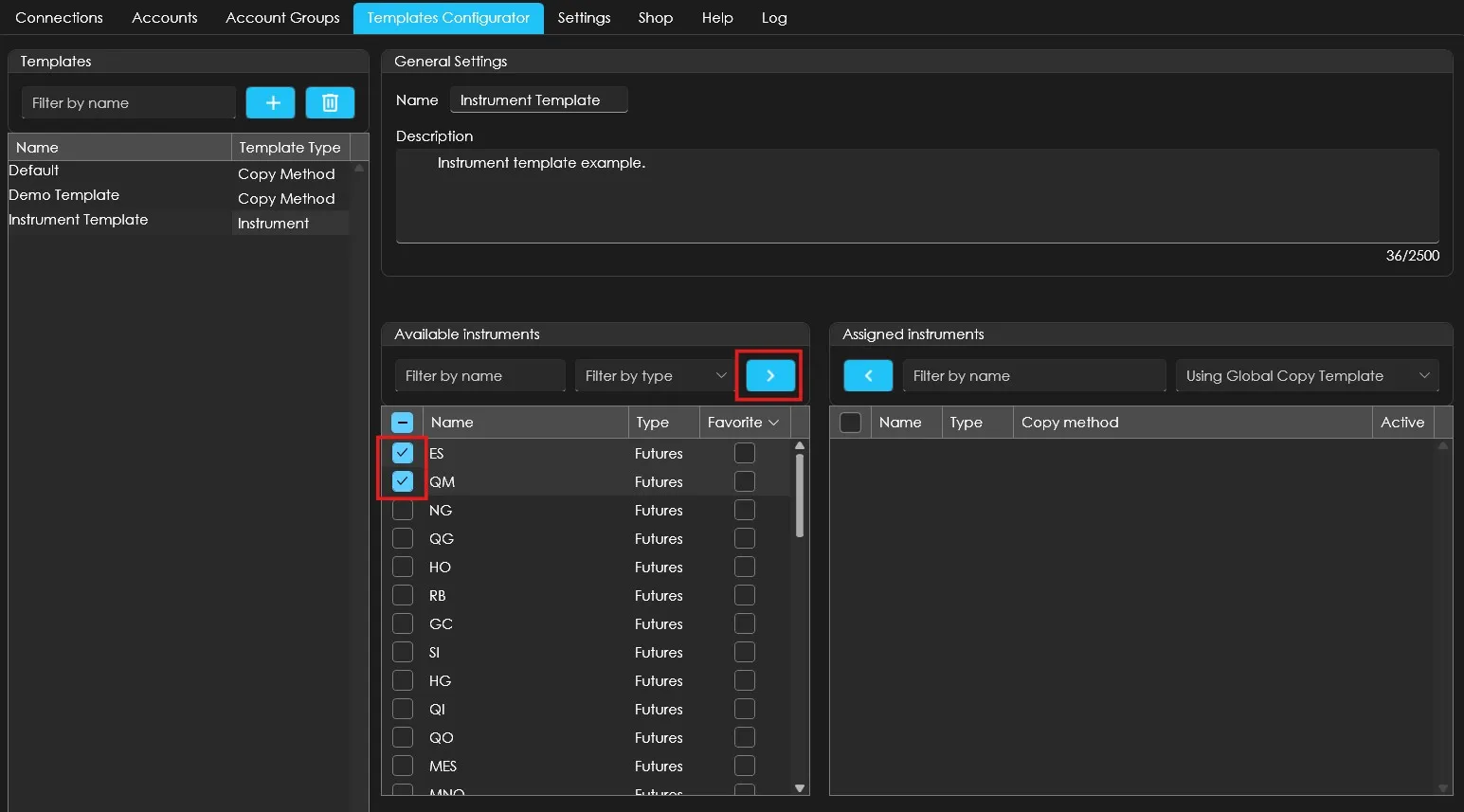
- Next, attach a suitable copy method template to this instrument template that defines how trades should be copied.
- Once that’s done, assign this instrument template to the relevant account group. This setup ensures that only trades from the selected instrument(s) will be copied to the follower accounts within that group.
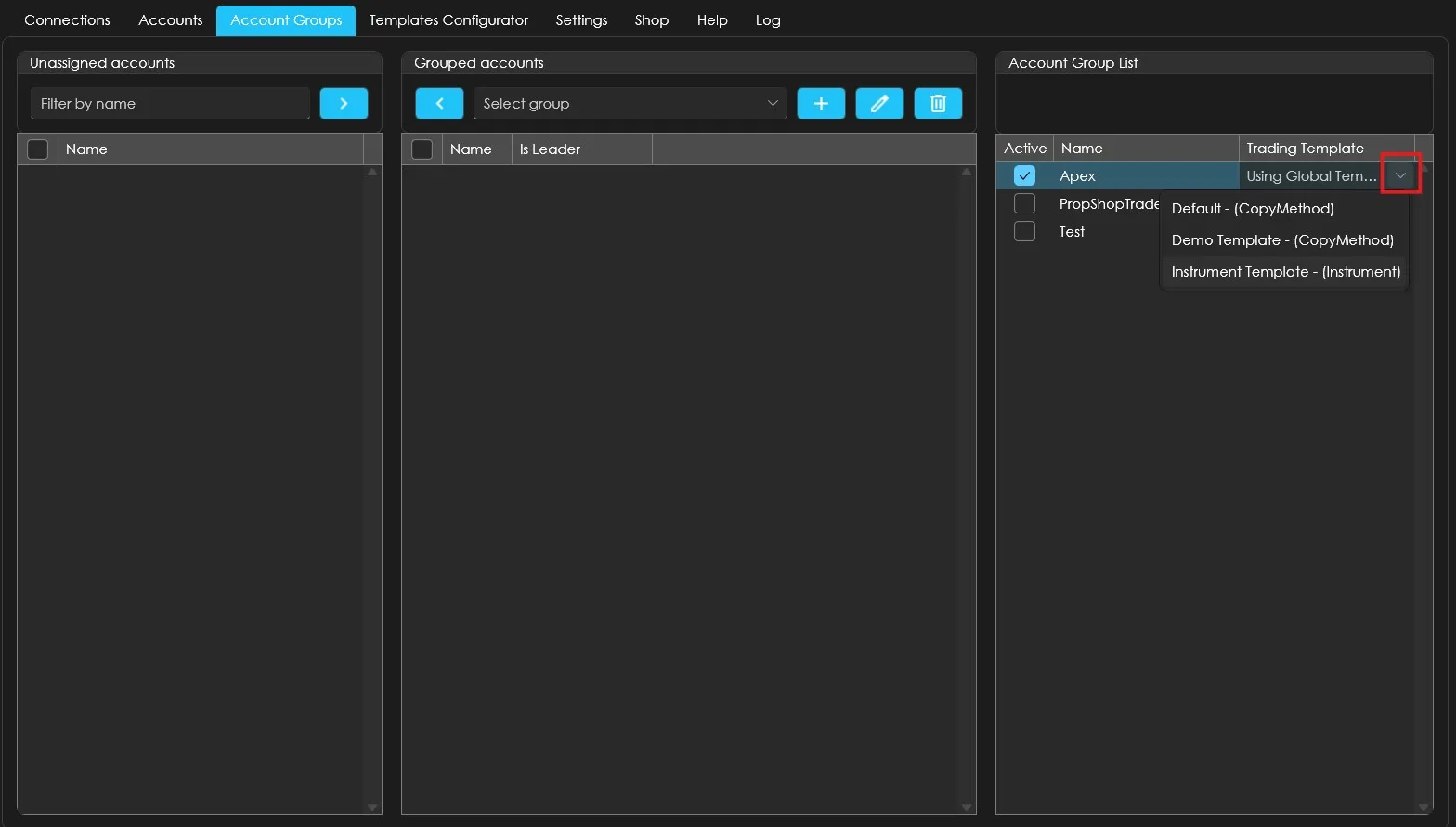
If I assign a different template to an individual account than the one assigned to its account group, which template will take priority for copying?
If you assign a template to an individual account from the Accounts tab, it will override any templates assigned to its Account Group as well as any Global templates.
Additional points to remember for Instrument templates:
-
If no Copy Method is assigned to the Instrument Template, it will automatically use the Global Copy Template, which defaults to the Default Copy Method. You can change this in the Settings tab.
-
If you assign a ‘copy method’ template to an ‘Individual instrument’, it will override any templates assigned to its ‘Instrument template’ as well as any Global templates
Tradovate Connection
How to set up Tradovate Connection in the ETP Trade Copier?
Open the ETP Trade Copier and click on ‘Add Connection’ and fill in the following details as directed.
a. Custom Connection name – Traders can enter any Connection name as per their preference.
b. Username – Traders must enter the same username as they have in their Tradovate Profile.
c. Broker – Select ‘Tradovate’ from the broker list and save the connection.
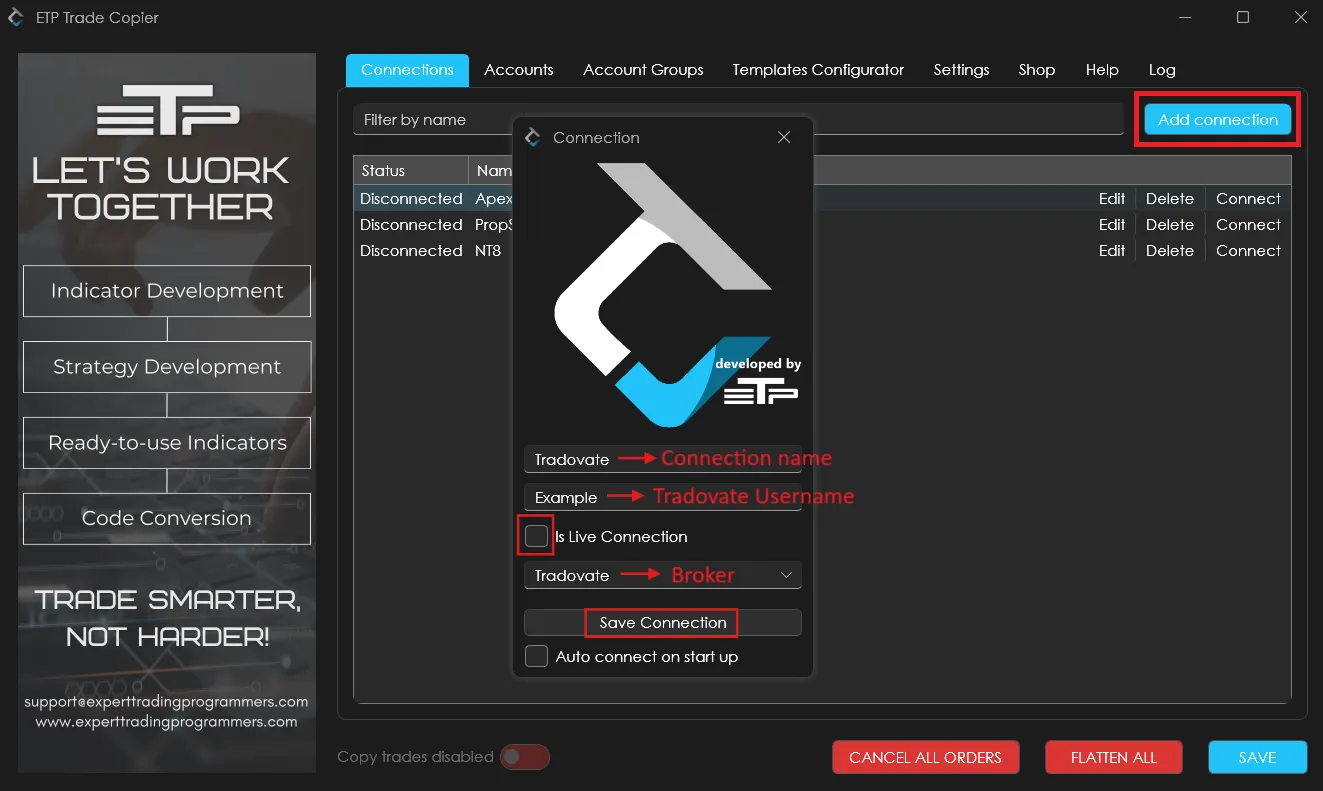
Once saved, a disclaimer window will appear containing our platform’s Risk Disclosure Statements and Terms and Conditions. You must accept these terms before the Trade Copier can be connected. Please scroll down and accept the conditions to proceed.
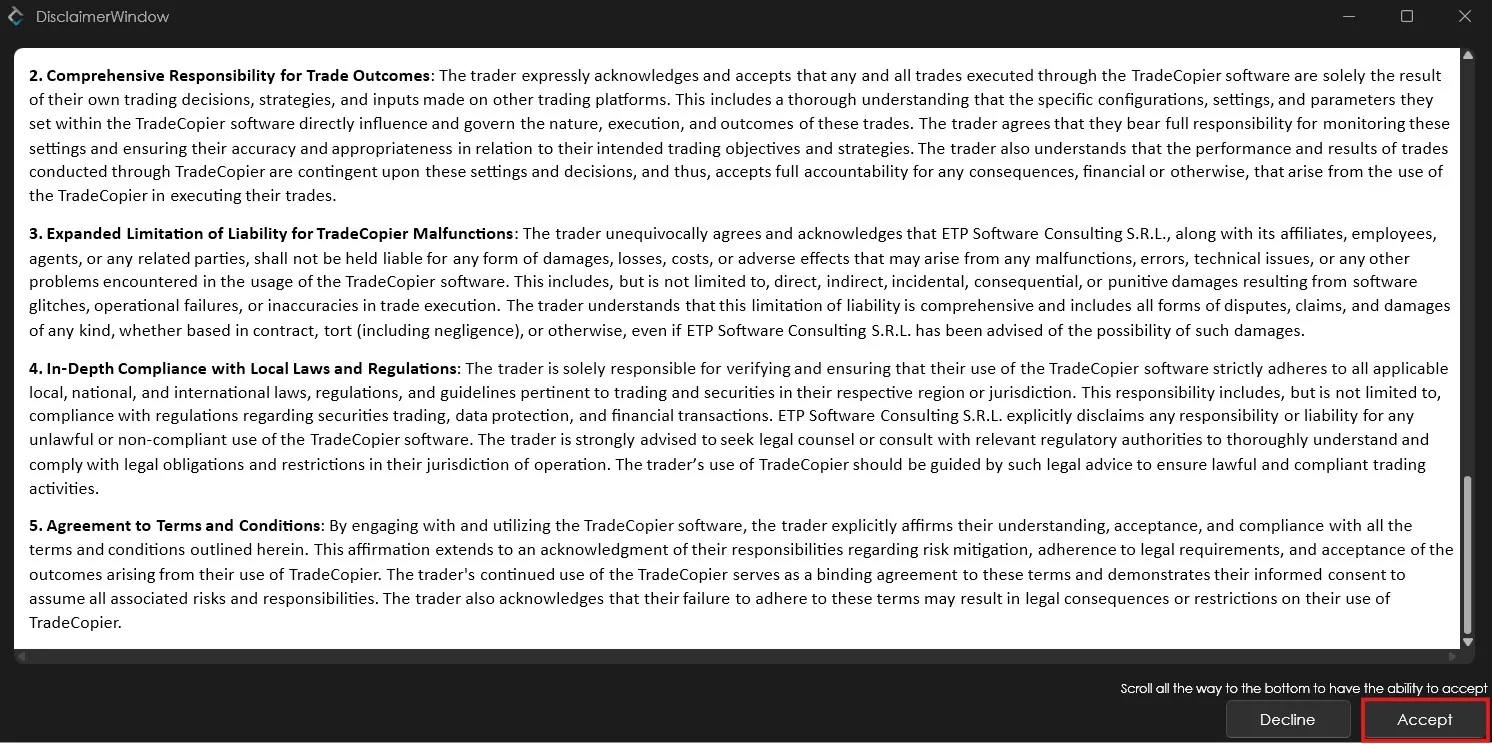
Important points to note while creating Tradovate connection:
-
Username Match: Make sure the username entered in the ETP Copier exactly matches your Tradovate username.
-
No Password Required: You do not need to enter a password when setting up the Tradovate connection. Simply enter the connection name, your username, and select ‘Tradovate’ as the broker.
-
‘Is Live Connection’ Option: This option will appear during setup. Enable it only if you’re connecting a live account with real funds. Do not enable it for prop firm or demo accounts.
How to link Tradovate and ETP Copier?
Follow the steps below to connect your Tradovate account with ETP Copier.
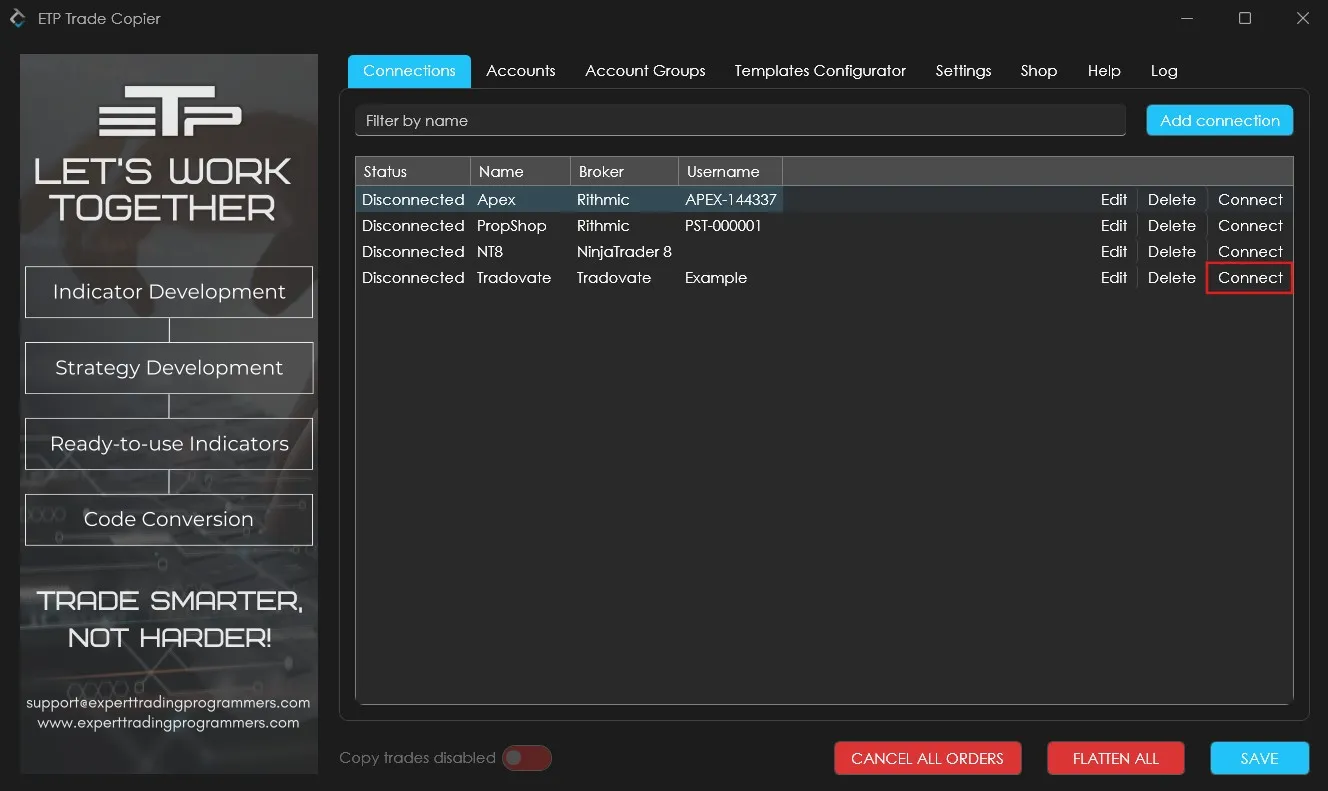
Step 1: In the ETP Copier, create a direct Tradovate connection as described in the above question.
Step 2: Once created, click on ‘Connect’ to initiate the connection.
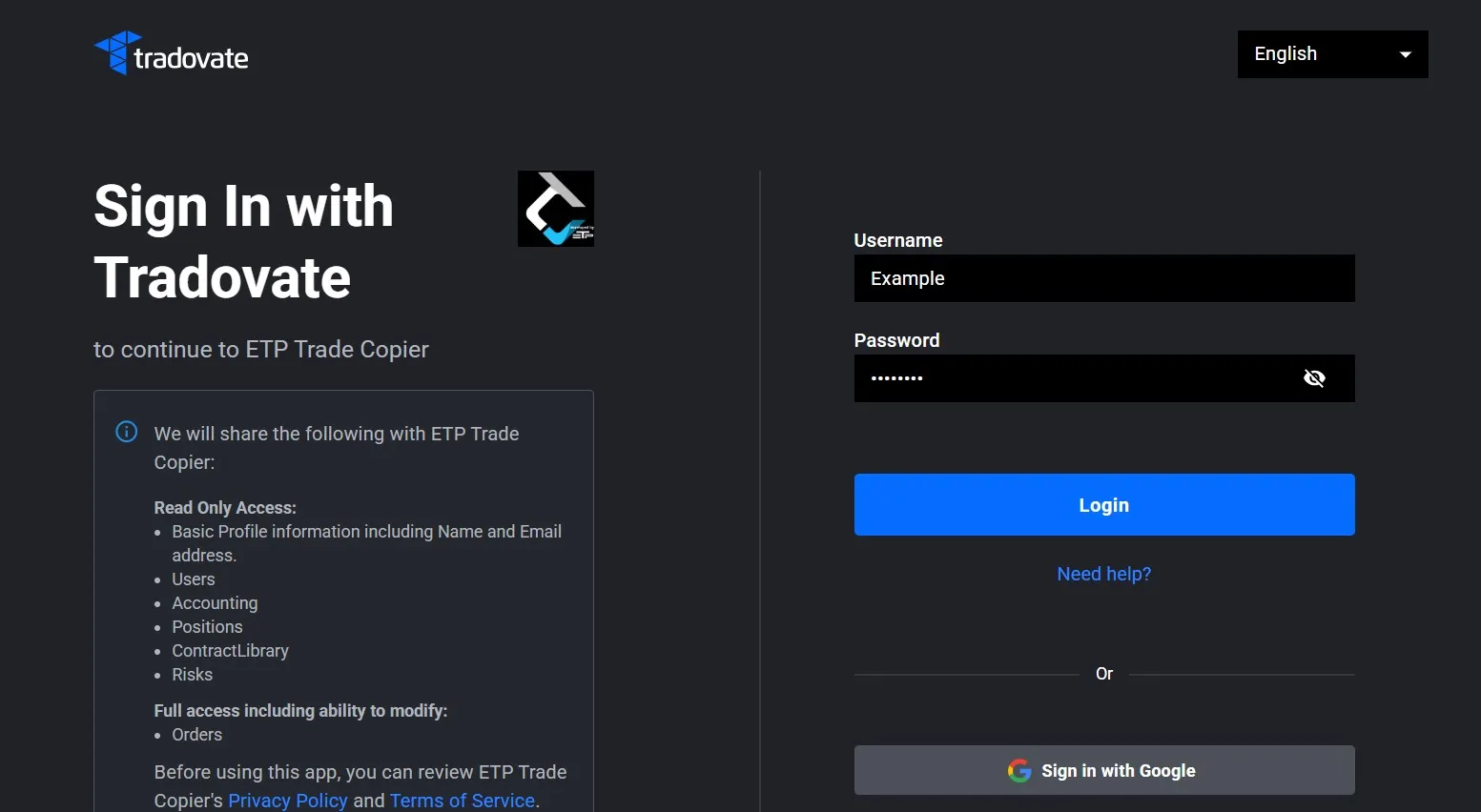
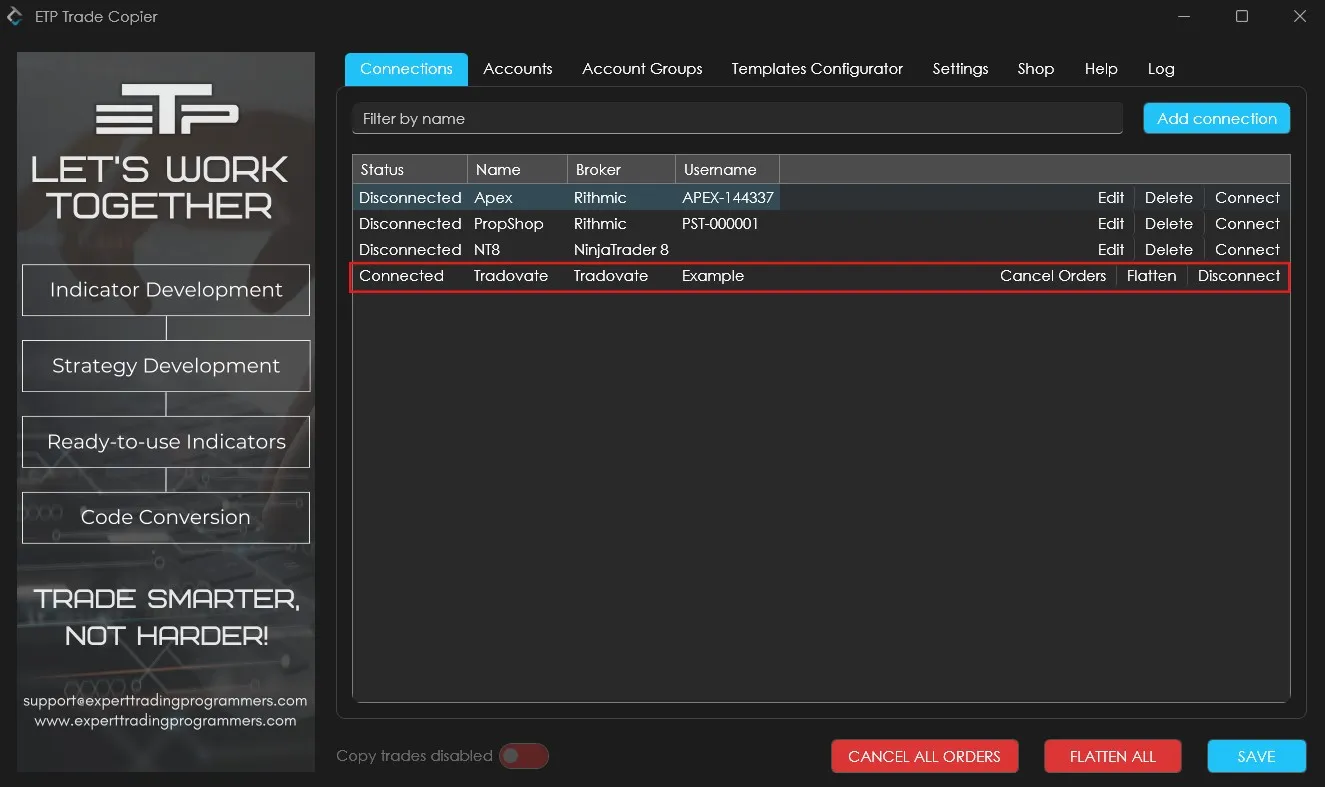
Step 3: You’ll be redirected to your browser to authenticate the connection. Enter your Tradovate username and password when prompted, then log in.
Step 4: Once successfully logged in, a new tab will open with the message: “Authentication complete. You may close this window.” This confirms the connection is successful. You can now check the Connections tab in the ETP Copier to ensure Tradovate is connected.
Why can’t I see the open P&L of my Tradovate accounts on the ETP Trade Copier?
Tradovate does not allow access to open P&L data unless the platform is directly connected to market data. This is different from how other trading platforms operate. As a result, the ETP Copier cannot display open P&L for Tradovate accounts. However, you can still use these accounts for copy trading and view the open P&L directly on the Tradovate terminal.